Experiment manager
Introduction
Welcome to Radcloud! This application allows users to manage data stored coming from web experiments, including creating new experiments, downloading experiment data, and managing participant data. The radcloud experiment management tool can be accessed here.
Getting Started
System Requirements
- A modern web browser (Chrome, Firefox)
- Internet connection
Installation
No installation is required. Simply access the web application via the provided URL. https://radcloud.socsci.ru.nl/
User Guide
Login
- Access the Login Page
- Navigate to the Radcloud experiment management interface https://radcloud.socsci.ru.nl/.
- You will be directed to the login page.
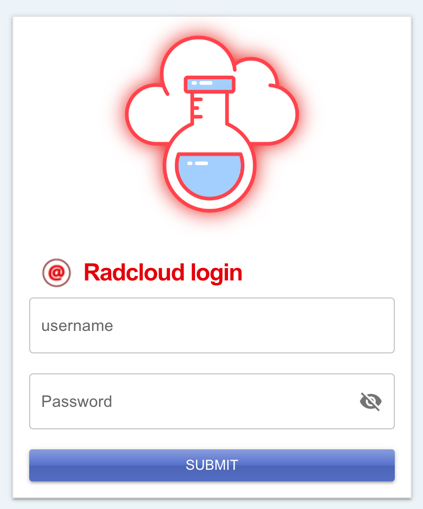
- Enter Credentials
- Enter your RU-account email address and password.
- Click on the "Login" button.
User interface view
Radcloud offers two view types: ''
Create an Experiment
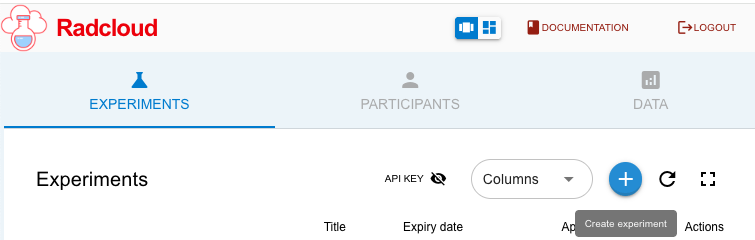
- Navigate to the Experiment Table
- Once logged in, click on the "Create Experiment" button in the dashboard.
- Enter Experiment Details
- Fill in the required fields such as Experiment Title, Supervisor e-mail.
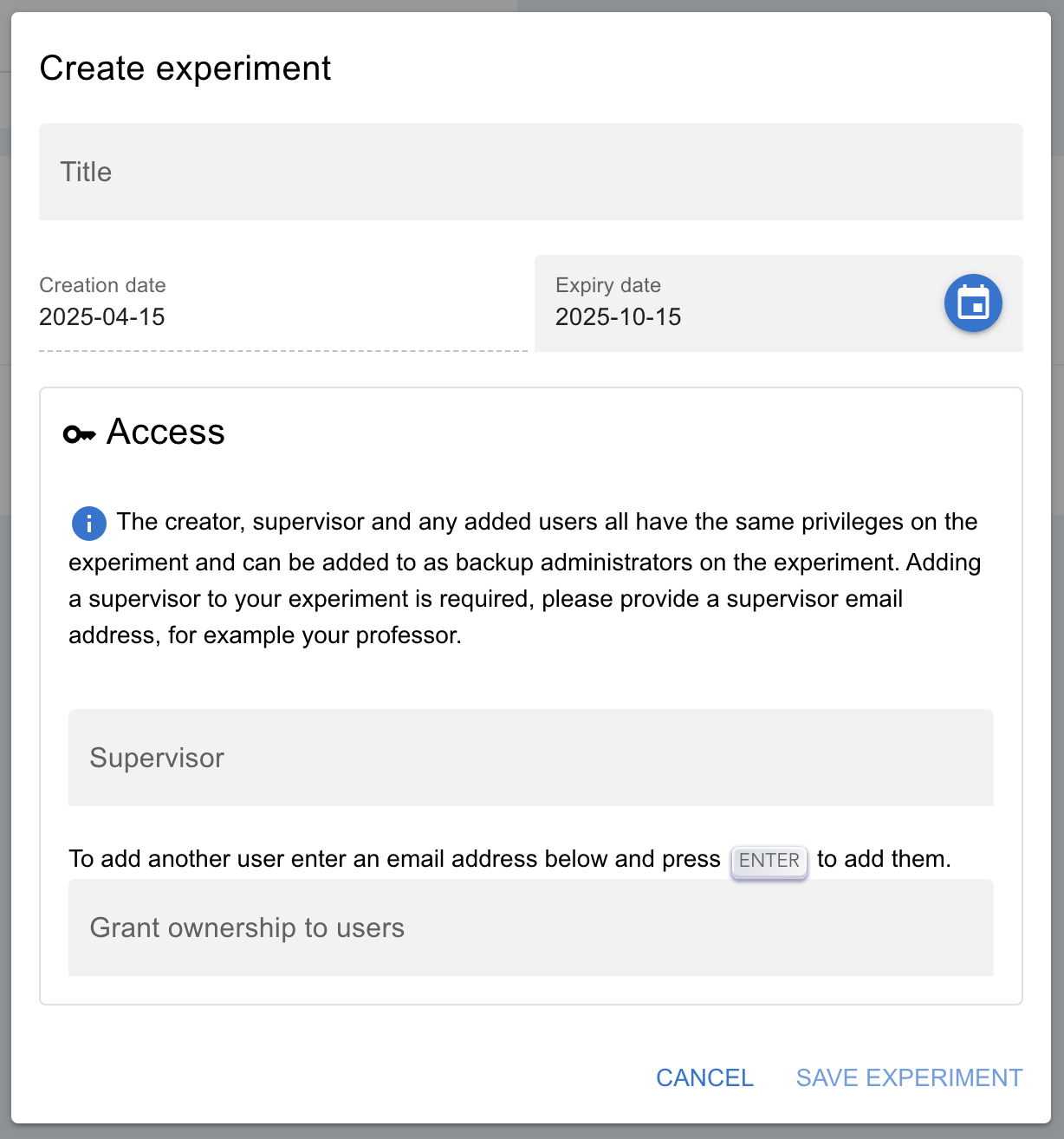
- Save Experiment
- After entering all necessary information, click on the "Save Experiment" button.
- You will receive a confirmation that your experiment has been created.
Downloading Experiment Data
Access the Experiments List
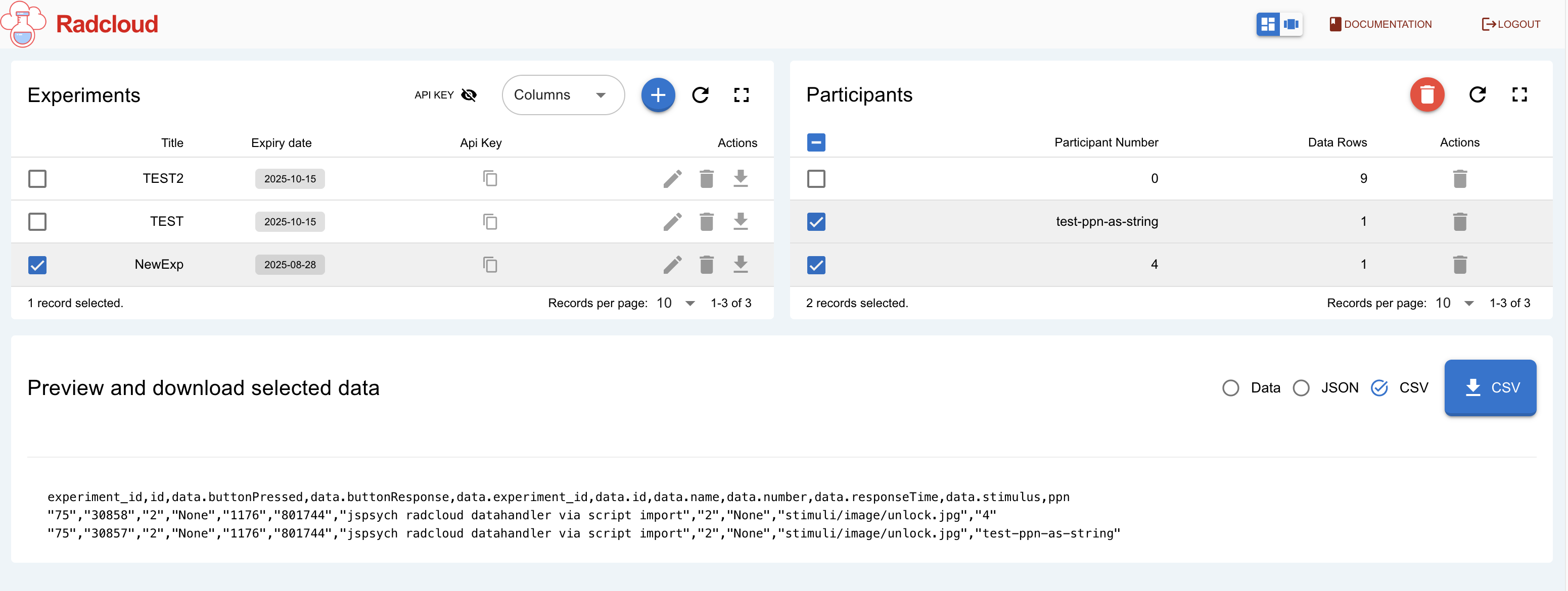
- From the dashboard, take a look at the "Experiments" section to view all your created experiments.
Select Experiment
- Select the experiment from which you want to download data.
Select Participants
- Select the participants from which you want to download data.
Download Data
- Choose the preferred format (CSV, JSON, etc.).
- In the Selected Data section, click on the "Download Data" button.
Uploading Experiment Data
Please continue to read Datahandler script. It documents how to add the datahandler script to your social web experiment.
Go to Radcloud API for API documentation if you want to communicate with the Radcloud API directly from your own code.
Copying the API Key
Go to the experiments section
- Once logged in, navigate to the "Experiments" section. Lookup the experiment that you want to hold your participant data.
Locate API Key
- Find the column labeled "API Key".
- Copy API Key
- Click the "Copy" icon button next to the experiment you want to use in your web experiment to copy it to your clipboard.

- Click the "Copy" icon button next to the experiment you want to use in your web experiment to copy it to your clipboard.
Deleting Participant Data
Access the Experiment Details
- From the dashboard, go to "Experiments" and select the experiment whose participant data you want to delete.
Delete Participant Data
- In the "Participants" section select the participant data you wish to delete.
- Click the "Delete" button to remove the selected participant data.
Deleting the Experiment
- Ensure all participant data has been deleted before attempting to delete the experiment.
- Once all participant data is removed, click the "Delete Experiment" trashcan button to delete the experiment.
Experiment expiry
When an experiment reaches its two-year expiration date, the data will be automatically removed from the database. Prior to this, notifications will be sent to the experiment creator, supervisor, and any other linked Radboud accounts via email on three occasions: two weeks before the expiration, one week before, and on the expiration date itself. The default expiration is set to six months after the experiment's creation, but this can be extended up to two years. All notifications and actions will be logged in the RadCloud database for auditing purposes.
FAQs
Q: The lifetime of an experiment is two years, what will happen to my data when an experiment expires?
A: When an experiment reaches its two-year expiration date, the data will be automatically removed from the database. Prior to this, notifications will be sent to the experiment creator, supervisor, and any other linked Radboud accounts via email on three occasions: two weeks before the expiration, one week before, and on the expiration date itself. The default expiration is set to six months after the experiment's creation, but this can be extended up to two years. All notifications and actions will be logged in the RadCloud database for auditing purposes.
Q: It's possible to use a Data Acquisition Collection in the Radboud Data Repository (RDR) via a web request using WebDAV. How does this compare to using RadCloud, and what are the advantages of RadCloud for future use?
A: Data collection in experiments often happens in stages. For example, a survey before a task may need to be stored separately for privacy and then combined later, which can require manual work. Students usually help with data processing, and authorization issues might arise, especially for OP2/OP3 students.
It’s also useful to append data from each trial after it’s completed. Sometimes, participants need the option to pause and later resume an experiment, like a questionnaire. When using WebDAV, a web experiment saves the entire file each time, which can help if you only save data at the end. However, this can lead to data loss. For instance, in one experiment, a page made participants think the study was over, resulting in the loss of all their data.
Q: What if I forget my login credentials?
A: You login to Radcloud using your radboud university account credentials. (LDAP)
Q: Can I edit an experiment after creating it?
A: Yes, navigate to the "Experiments" section, select the experiment, and click on the "Edit" button to make changes.
Q: What data formats are available for download?
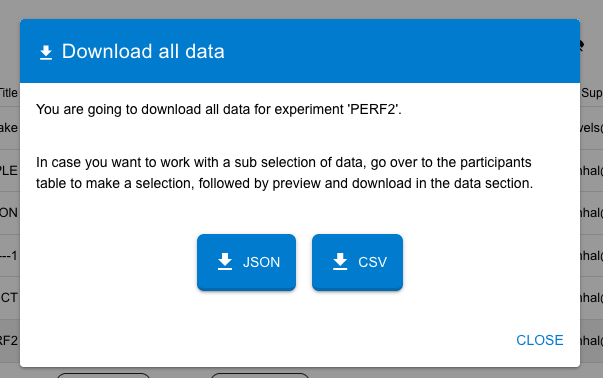
A: You can download your experiment data in CSV and JSON formats. You can download all data at once using the download action on a selected experiment in the

Q: How do I copy my API key?
A: Go to your Experiment table, locate the API key column, and click the "Copy" button.
Q: How do I delete participant data?
A: In the experiment detail page, navigate to the "Participants" section, select the data to delete, and click the "Delete" button.
Q: Can I delete an experiment with participant data still present?
A: No, you must delete all participant data before you can delete the experiment.
Flow
Where does this experiment manager fit in the flow of your online experiment?
Support
If you have any questions, suggestions, or feedback, please feel free to reach out to us via email at tsg@ru.nl. We'd love to hear from you and are always open to improving this project based on your input.