Limesurvey, 2 My first survey
In this lesson you will log on to Limesurvey and make your first survey. Let's go to the Limesurvey administrative interface. You may want to open it in a second browser window. (right click -> Open Link in New Window)
Getting Started
Log on with your university Microsoft email address. If you are already logged on to some other system you only select this address and no credentials need to be entered. This tutorial assumes that you are using the English language interface. If your operating system has another language then you must select "English" as interface language here. Chosing the "Default" language will present you with an interface in your own language. The interface language is independent of the language of the surveys that you make. You will select the survey language later.

Now you will see the welcome screen. Make sure that your university number (top right) is correct.
First Run
First time you log on to Limesurvey you will get a quick tour of the New Survey Editor in the form of an interactive tour. It will show you the following:
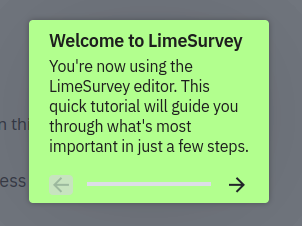
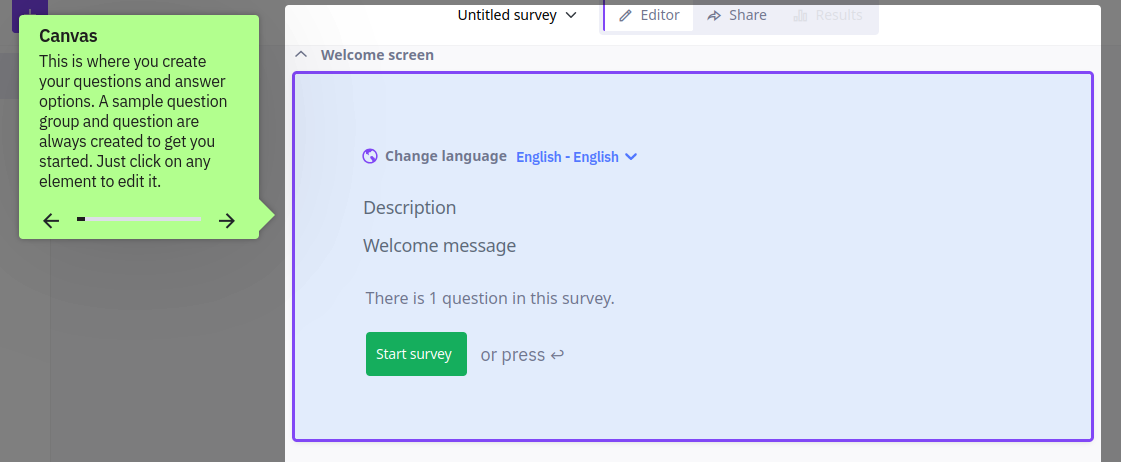
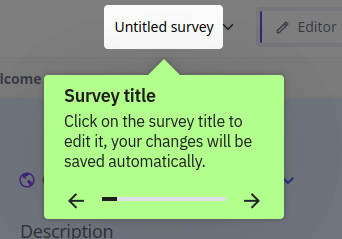
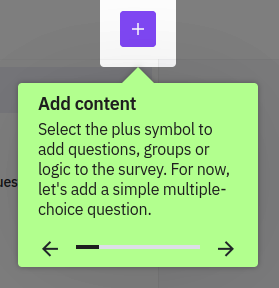
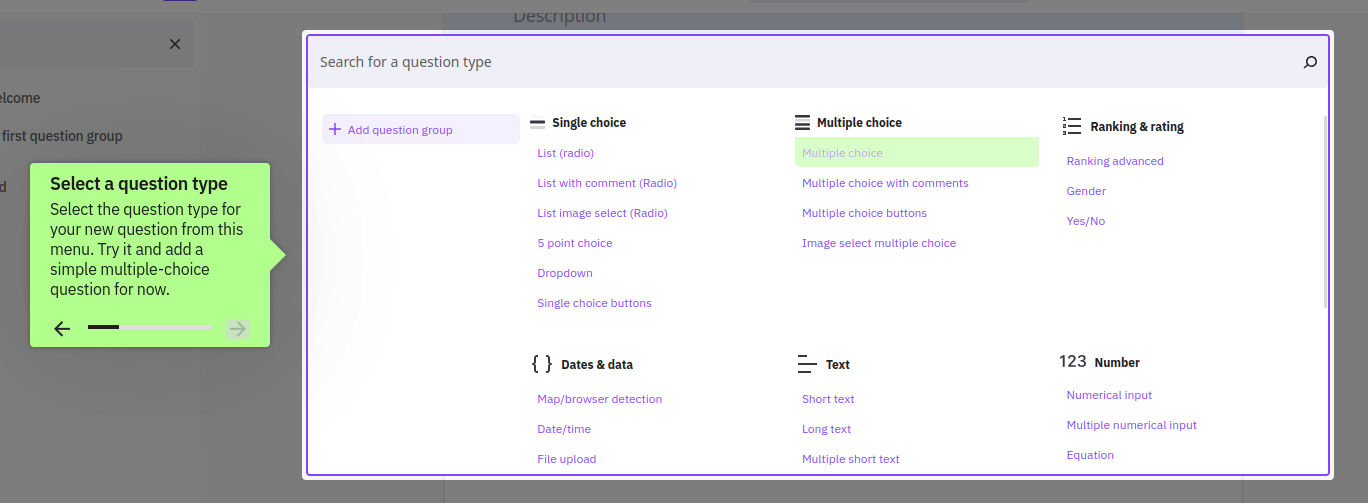
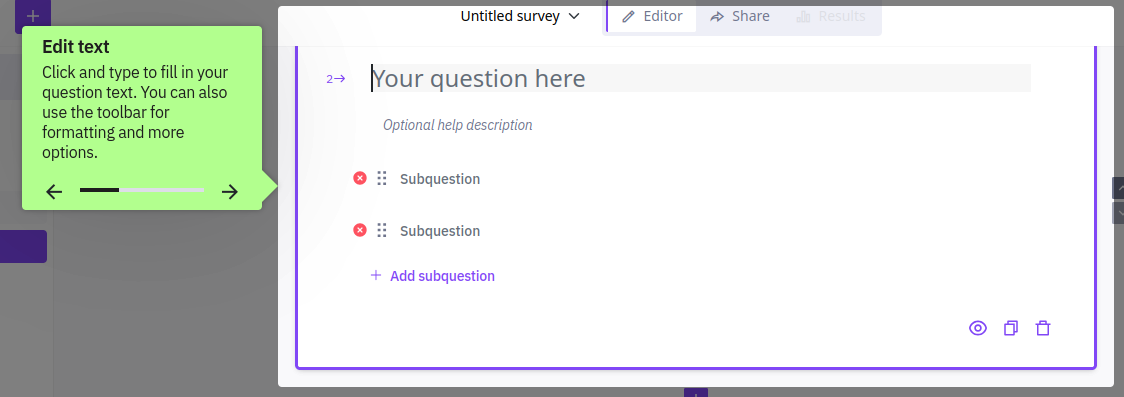
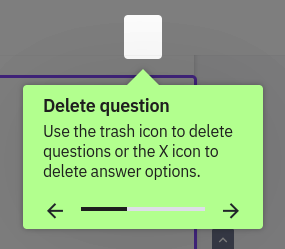
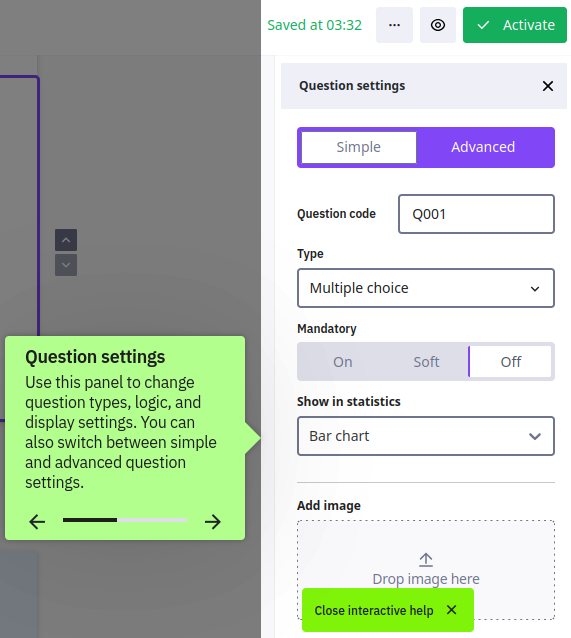
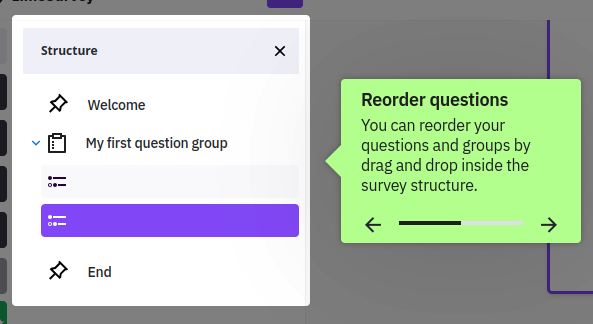
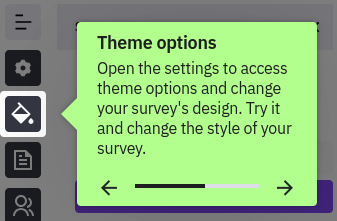
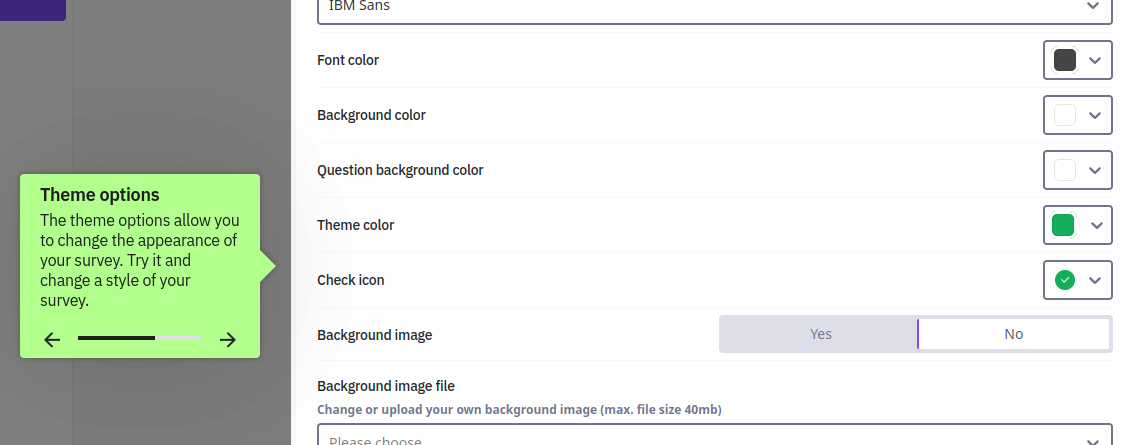
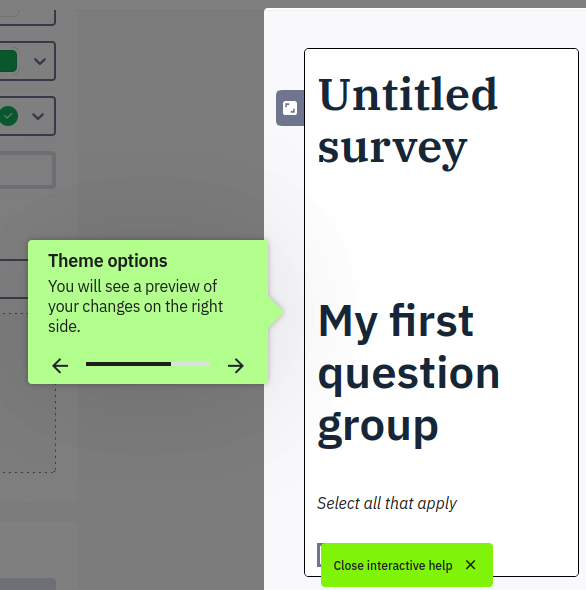
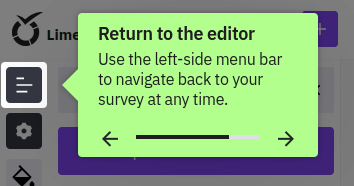
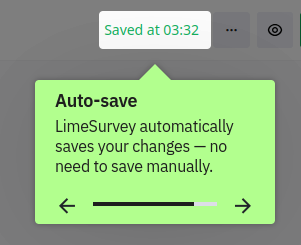
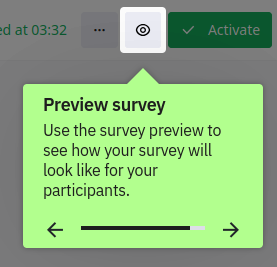
Note that there is also a Classic Editor that we will use at the end of this tutorial for some advanced features, but for now we will be using the New Editor
Continuing with the first survey
The interactive tour made a survey for you with a welcome screen, a question group and an end screen. You added a Multiple Choice Question.
What you did not yet do, is give it a name. Your survey needs a name. Let's call it Family Life. This name will appear in your list of surveys in the future. Make sure you select English as the base language of your survey.
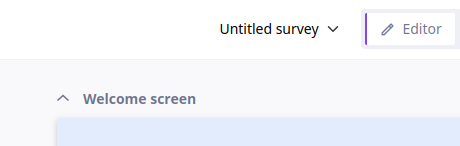
Now scroll to the bottom of the page. Check your e-mail address. Click Save to save your your very first survey.

You just made your first survey. It doesn't contain any questions yet. It cannot be started, but it has a name and it was succesfully saved on the server. Congratulations.
Adding a question
Surveys contain questions. These questions are grouped in question groups. For now you can think of a question group as a page. The survey participant will see one question group at a time. If you look at the screen that appeared after you saved your survey, then you will note another circled plus icon  . Click it to create a new question group.

Just like the survey itself, the question group needs a name. Call it Background. It will contain some background questions before the survey proper starts.

Now scroll to the bottom of the page to save your your first question group.

If you look at the screen that appeared after you saved the first question group, then you will note yet another circled plus icon , the third one. Click it to create a new question.

The page that you see now will let you create a question. The question code will later appear as variable name in your data file. Type for instance name. The rich text editor below it allows you to type a question. You will later see that it can do much more. You can change text font and appearance with it. You can use it to insert tables, pictures, sound and video. You can even use it for inserting complete interactive apps. Right now you will simply type the question: What is your name?. Press Save and close to complete your first survey.

Did you notice the three rows of icons? If a survey has been selected, there is a survey toolbar on top. If a question group has been selected, there is a question group toolbar below it and if a question has been selected, there is a question toolbar below that one. Some icons are present in several toolbars.
Running the survey
Press the gear  icon for a test run of your first survey. No data will be saved because the survey has not been activated yet. The survey contains a welcome page, a question page and a goodbye page.
Press next after reading to introduction text of the survey

Type your name. Press submit after completing the survey

You can close the browser tab after completing the survey.

Continue with the next lesson